
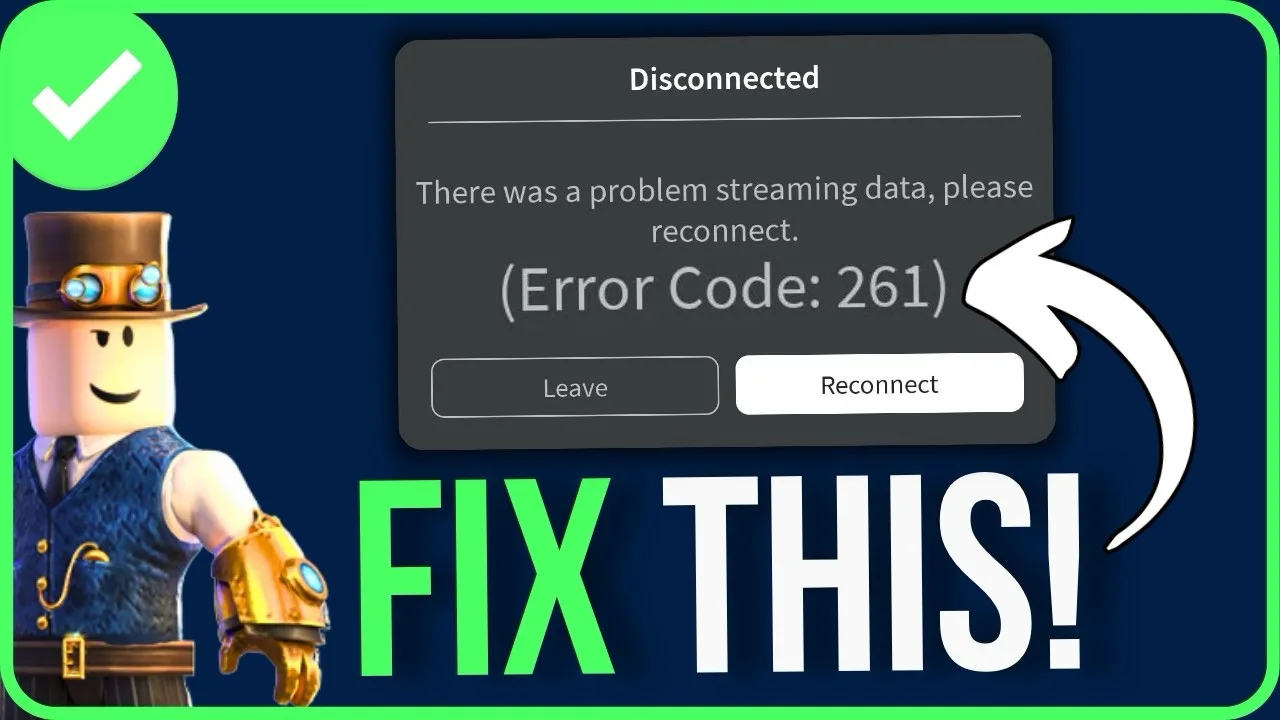
Are you getting the frustrating Roblox Error Code 261 while trying to join a game? This connection problem usually happens when Roblox keeps disconnecting or fails to load on your mobile device. In this guide, we will show you the best step-by-step methods to fix this issue and get you back into the game.
1. Check and Refresh Your Internet Connection
A slow or unstable network is the most common cause of Error Code 261. Try these quick network fixes:
- Switch Networks: If you are on Wi-Fi, try switching to mobile data (or vice versa).
- Airplane Mode Trick: Turn on Airplane Mode for about 10 seconds, then turn it off to refresh your connection.
2. Clear Roblox Cache (For Android Users)
If you are using an Android device, temporary files might be causing the app to crash. Follow these steps:
- Open your phone Settings and go to Apps or Manage Apps.
- Find and tap on Roblox.
- Tap on Force Stop to close the app completely.
- Go to Storage, tap Clear Data, and select Clear Cache.
3. Reinstall Roblox (For iPhone/iOS Users)
For iPhone users, the most effective solution is to uninstall and reinstall the Roblox app. This clears old data and small bugs that prevent the app from connecting properly.
4. Additional Solutions to Fix Error 261
If the problem persists, try these professional tips:
- Update the App: Check the Google Play Store or Apple App Store to ensure your Roblox app is updated to the latest version.
- Restart Your Phone: A simple reboot can fix temporary system glitches.
- Disable VPN: If you are using a VPN, turn it off. VPN connections can sometimes block Roblox servers and cause disconnection issues.
- Check Server Status: Sometimes the issue is with Roblox’s own servers. Check the official Roblox status page to see if there is a global outage.
Quick Troubleshooting Summary
Problem Fix Unstable Network Switch Wi-Fi/Data or Airplane Mode Corrupt Cache Clear Cache in App Settings Outdated App Update via Play Store/App Store VPN Interference Turn off VPN
Credit: Information sourced from the Explainic YouTube channel.